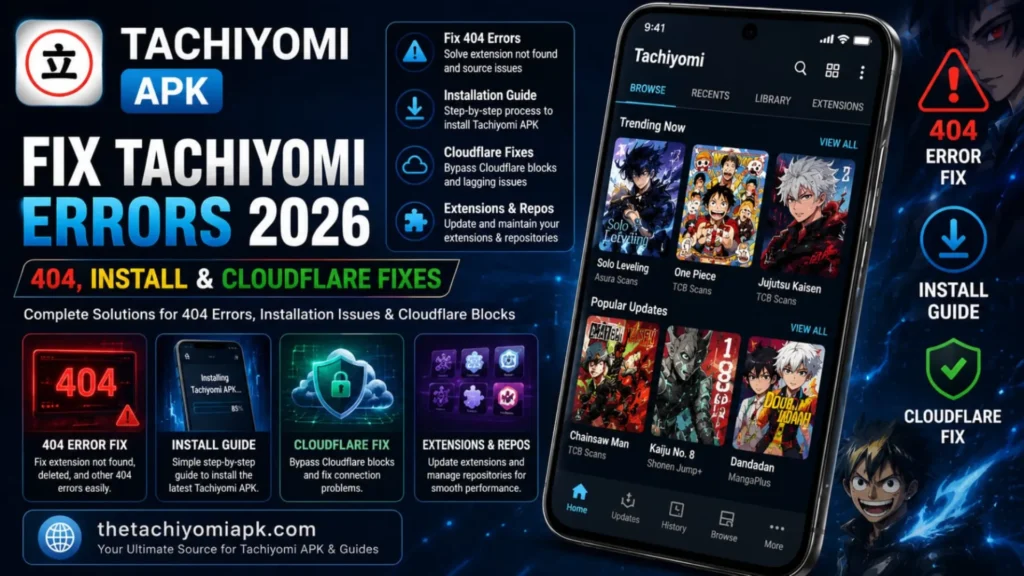
Fix Tachiyomi Errors 404, CloudFlare, and Crash issues 2026 Updated
If your Tachiyomi app stopped loading manga, shows a 404 error, crashes after an update, or fails to install, you are not alone. In 2026, many users face Cloudflare blocks, broken sources, and HTTPS issues because manga websites frequently change their systems. One day, everything works smoothly, and the next day, your library stops loading.
Most Tachiyomi APK errors can be fixed easily. Some problems only need a settings change, while others require updating DNS, changing the user agent, or switching to a newer fork like Mihon or Aniyomi. This guide covers every common error with short and practical solutions so you can start reading again quickly.
Why Tachiyomi Errors Happen So Often?
Tachiyomi depends on third-party manga websites and extensions instead of its own servers. When those sites change their layouts, security settings, or URLs, the connected extensions stop working immediately. Additionally, the core Tachiyomi project stopped receiving updates in 2024, which means newer Android versions and stronger Cloudflare protection systems create compatibility problems with outdated builds.
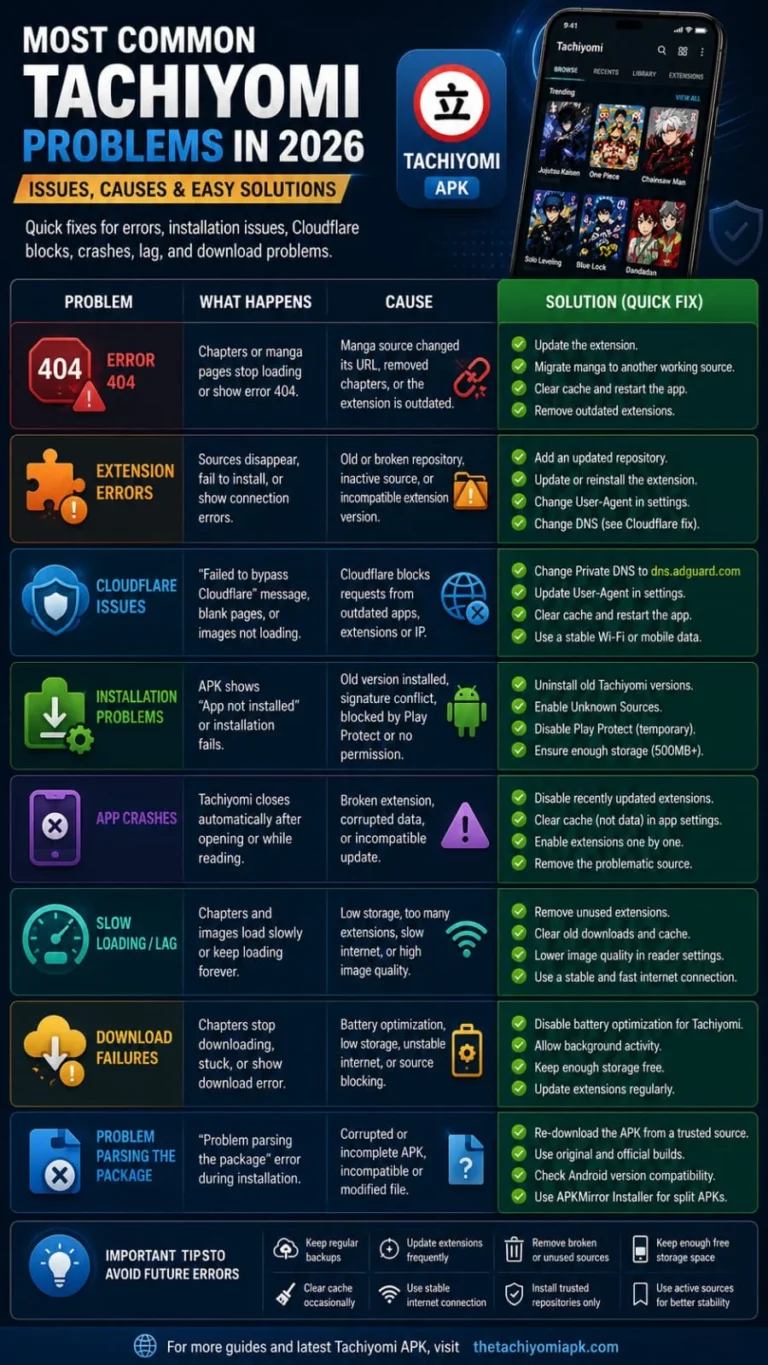
Most Common Tachiyomi Problems in 2026
These are the most common issues users face:
| Problem | What Happens |
| Error 404 | Chapters or manga pages stop loading |
| HTTPS issue | Sources refuse to connect securely |
| Cloudflare issue | Failed to bypass Cloudflare message appears |
| Install problem | APK shows “App not installed” |
| App crashes | Tachiyomi closes after opening |
| Slow loading | Images and chapters load very slowly |
| Download failures | Chapters stop downloading or get stuck |
| Parsing error | The APK file cannot be installed on the device |
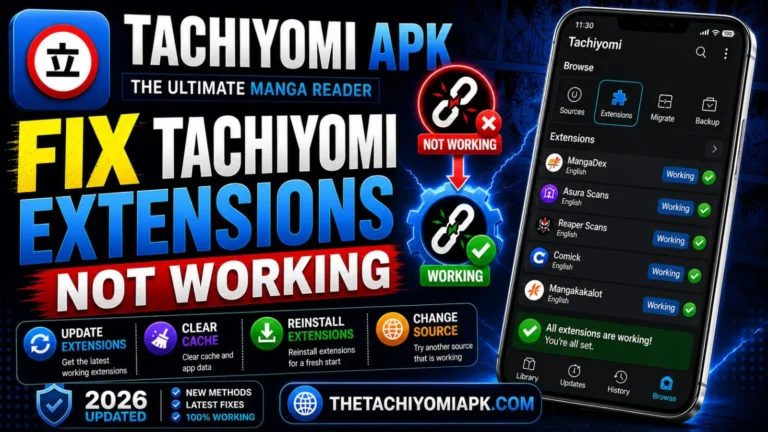
For extension-specific issues like missing sources, broken repositories, and repo setup, read our complete guide on Fix Tachiyomi Extensions Not Working.
How to Fix Tachiyomi Error 404
Error 404 appears when a manga source changes its chapter links or removes old content. Sometimes the extension becomes outdated and can no longer connect to the website properly.
Update the Extension First
Open the extensions section and update all installed sources. Many 404 errors disappear after an update because developers fix broken links regularly. After updating, restart the app and refresh the manga source.
If the problem continues, clear the app cache. Old cache files can prevent new extensions from connecting properly. Also, remove extensions that have not received updates for a long time.
Migrate Manga to Another Source
If one extension stops working completely, migrating your manga to another active source is the fastest solution. This method keeps your categories and reading progress safe.
- Long-press the manga title in your library
- Tap Migrate
- Choose a different working extension
- Match the manga title
- Continue reading from where you left off
How to Fix Cloudflare Errors in Tachiyomi
Cloudflare blocks suspicious traffic from outdated Tachiyomi versions and old extensions. This causes loading problems, blank chapter pages, or failed connections when opening manga.
Common Errors
- Failed to bypass Cloudflare
- Connection closed
- Blank chapter pages
- Images not loading
Fix 1: Change Private DNS (Most Effective)
Changing your Private DNS solves most Cloudflare-related errors. It helps Tachiyomi connect properly with manga sources that are restricted by your network. This method is safe and works on most Android devices without any extra apps.
- Open Android Settings
- Search Private DNS
- Select “Private DNS Provider Hostname”
- Enter: dns.adguard.com
- Save settings
- Restart the app
Fix 2 — Update the User-Agent
Many manga websites now block outdated browser data used by old Tachiyomi versions. Updating the user agent makes the app appear as a regular browser, which fixes connection and Cloudflare issues.
Steps to Change User-Agent
- Open Chrome browser
- Search “What is my user agent?”
- Copy the full text
- Open Tachiyomi
- Go to Settings > Advanced > Default User-Agent String
- Paste the new User-Agent
- Restart the app
Other Fixes
Fix
- Change Wi-Fi or mobile network
- Clear app cache
- Use updated extensions
- Restart the app
Why It Helps
- Some networks block specific manga sources
- Removes broken temporary files, causing errors
- Older extensions fail Cloudflare checks more often
- Refreshes connection sessions
How to Fix Tachiyomi Errors During Installation
Many users cannot install Tachiyomi because Android blocks the APK file or detects a signature conflict with an older version. These problems are common when switching between different Tachiyomi builds or forks.
Remove Old Tachiyomi Builds
If another Tachiyomi version is already installed, uninstall it before installing the new APK. Old app data conflicts with updated versions and stops installation. Before uninstalling, always create a backup of your library and export your settings.
Enable Unknown Sources
Android blocks APK installation by default. You need to allow installation from your browser or file manager.
- Open Settings
- Go to Security
- Open Install Unknown Apps
- Select Browser or File Manager
- Enable “Allow from this source”
Temporarily Disable Play Protect (If APK Gets Blocked)
Google Play Protect sometimes flags Tachiyomi APKs as suspicious and blocks installation. You can temporarily turn it off to complete the installation.
- Open Google Play Store
- Tap your Profile icon
- Go to Play Protect > Settings
- Turn off “Scan apps with Play Protect”
- Install Tachiyomi
- Re-enable Play Protect immediately after
Set Installer Type to Legacy
If installation keeps failing, switching the installer type resolves issues on many devices. Go to Settings → Advanced and change the Installer Type from Package Installer to Legacy Installer.
Fix “App Not Installed” Error
Solution
- Delete the old Tachiyomi version
- Restart phone
- Free at least 500MB of storage space
- Re-download APK
- Disable Play Protect temporarily
Result
- Removes signature conflicts
- Clears cached package files
- Android needs extra installation space
- Fixes corrupted download issues
- Removes the security scan block
How to Fix Tachiyomi Crashing After Updates
If Tachiyomi keeps crashing after an update, a broken or recently updated extension is often the main cause. Many users blame the update itself, but in most cases, an incompatible manga source is responsible.
Identify the Broken Extension
- Disable recently updated extensions
- Restart the app
- Enable extensions one by one
- Check which extension causes the crash
- Remove that specific source
Clear Cache Without Losing Data:
Go to Settings → Apps → Tachiyomi → Storage → Clear Cache. Avoid using Clear Data unless you have already created a full backup, as it will erase your library and settings.
How to Fix Slow Loading and Lag
Tachiyomi becomes slow when storage is low or too many extensions are installed. When the app handles many downloads and sources at the same time, chapter loading and scrolling speeds decrease significantly.
Fix
- Remove unused extensions
- Clear old downloads chapters
- Lower image quality in settings
- Move downloads to SD card
- Disable battery optimization for Tachiyomi
Improvement
- Reduces app load time significantly
- Frees up internal storage space
- Loads chapters faster on slow connections
- Improves internal storage performance
- Stops background restrictions
Why Downloads Keep Failing?
Tachiyomi downloads fail because Android battery restrictions stop background activity. Low storage space, unstable internet, and outdated extensions can also interrupt chapter downloads.
Fix Download Problems
- Use stable Wi‑Fi instead of mobile data for downloads
- Keep enough storage free
- Update extensions regularly to avoid broken download links
How to Fix the Problem Parsing the Package Error
This error appears when the APK file is incomplete, corrupted, or not compatible with your Android version. Even a single damaged download can stop Tachiyomi from installing properly.
Best Fix
- Re-download the APK
- Avoid modified APKs
- Check Android version
- Install split APKs correctly
Action
- Download from thetachiyomiapk.com
- Use original builds only
- Confirm compatibility before installing
- Use APKMirror Installer for APKM/XAPK files
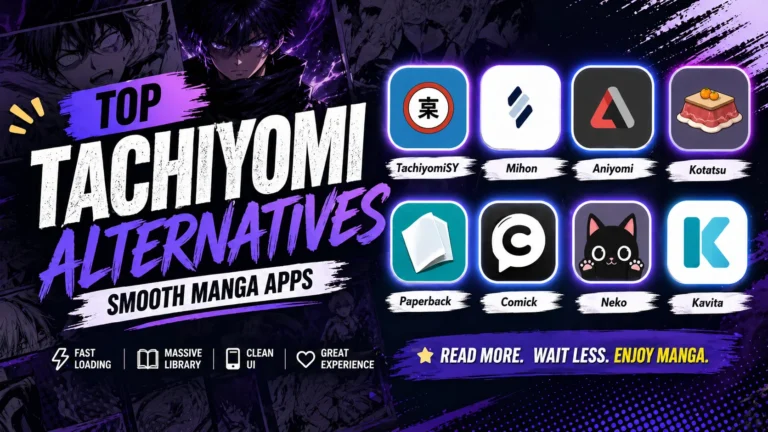
If your Tachiyomi app is still not working properly after trying all the above fixes, your current build may be too outdated to repair. In that case, switching to an actively maintained fork is the best option. Check our complete guide on Tachiyomi Alternatives.
Important Tips to Avoid Future Errors
Following these habits regularly can help you fix Tachiyomi errors before they become serious problems.
- Keep regular backups
- Keep enough free storage space
- Clear the cache occasionally
- Use a stable internet connection
- Disable aggressive battery optimization
- Download from trusted sites like thetachiyomiapk.com
Quick Troubleshooting Table
Use the quick fixes below to fix Tachiyomi errors faster without advanced troubleshooting.
| Error | Fastest Fix |
| Error 404 | Update or change extension |
| Cloudflare failed | Change DNS + User-Agent |
| App crashing | Disable broken extension |
| App not installed | Remove old version + disable Play Protect |
| Slow Loading | Free storage space |
| Downloads stuck | Disable battery optimization |
| HTTPS issue | Update the User-Agent string in advanced settings |
| Parsing error | Re-download APK from trusted source |
Final Thoughts
Tachiyomi errors can be frustrating, especially when chapters stop loading or the app crashes while reading. However, almost every problem can be fixed with updated extensions, correct settings, and simple troubleshooting steps. Follow the methods in this guide, use trusted repositories, create regular backups, and switch to Mihon if your current build becomes unstable.